




Skip Navigation LinksSnapComms > Solutions > Effective IT Communication

Effective IT Communication - Tips and Tools

Effective Policy Communication

Driving User Adoption of New Systems

Reduce Internal Email Volumes

Increase Intranet Usage

Push Intranet RSS to the desktop

Raise Security Awareness


14 Tips for Effective IT Communication


Most enterprise IT teams share this aim: To deliver on business requirements and add value to the business.

Effective two-way communication plays an important part in meeting these aims. However, many IT teams are often too busy to communicate effectively.

So how can IT teams improve communication with the wider business?


Tip 1: Gather Feedback and Track What’s Important


To set priorities, benchmark progress and improve performance, IT teams need to hear from their customers, both internal and external. But many IT teams make a common mistake: they assume they understand what their customers want. These are some ways to counter this problem.


survey-IT-communication

Desktop IT Survey tool

Listen to the ‘non-techies’

Great ideas and insight can come from the people who do the jobs IT supports. Gathering feedback from across your business is important if the IT team is able to respond quickly and effectively.


Increase survey response rates

When you survey staff for feedback, make sure you reach the people you want to hear from. Staff are more likely to notice a desktop survey which pops up on their computer screens than they are a survey that becomes buried in their email inbox. This is a good way to ensure your feedback covers as wide a range of views as possible – including those of the important ‘silent majority’. This group typically lacks strong views or agendas and often needs prompting to take part in surveys.

“SnapComms' Desktop Staff Survey is a great benchmarking tool”
Annette Culpan, Internal Communications manager,
Vodafone NZ

Communication tools – Desktop Survey tool


Tip 2: Promote the IT Function as well as Individual and Team Wins


Make staff aware of the services the IT team provides and promote the value to your internal customers. This can help counter the problem below.


Tendency to blame IT

When staff can’t access the systems they need or the network is slow, they tend to blame the IT team, whatever the cause. This negative attitude often results because staff simply don’t understand what IT teams do and the value they contribute.


Communicate your priorities and how IT supports the business

Effective IT communication needs a culture that seeks constant feedback and recognizes value. It encourages the IT business unit to learn and evolve.

Resource – Internal Branding tips


Tip 3: Educate Employees and Raise the Profile of Important IT Policies


Communicate the basics well

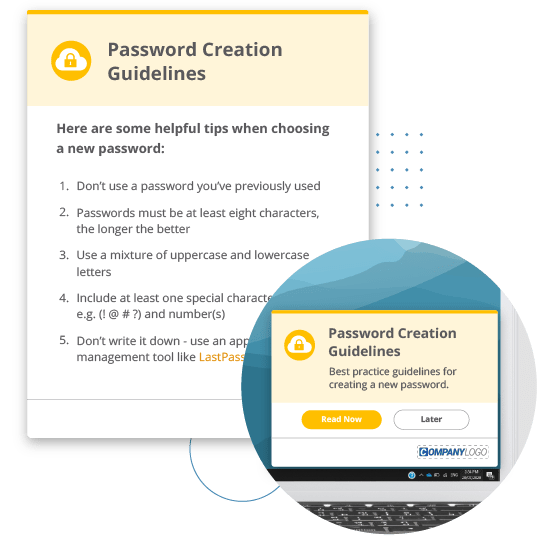
Effective IT teams put in place safeguards and educate employees to use, protect and store data appropriately. Regular communication from the IT team can remind busy users to attend to the basics like changing their passwords regularly or backing up their files.


Staff use of social media creates new risks for organizations

To manage these risks, IT teams need to communicate clearly. Helping users understand the changing regulations, technology, security and processes associated with social media is an increasingly important part of IT’s role.

Resource – Policy Communication tips


Tip 4: Use Visual Communications to Help Messages ‘Cut Through’


'Boring' but important?

Most staff in today’s organizations suffer from ‘information overload’. More and more, this means that they only notice communications they think are directly or clearly relevant to them. For non-IT staff, this rarely includes information about IT.


Digital signage on screensavers can be a good way to ‘cut through the clutter’ and make sure staff notice important messages from IT. These are some examples of IT communications where digital signage on screensavers can work well:
  • New and proposed changes to technology
    IT-communication-screensaver

    IT Communication by Screensaver

  • Service changes and upgrades
  • Security policies
  • Compliance education
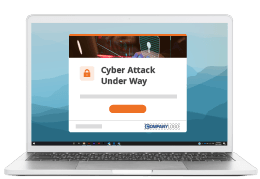
  • Virus announcements and safe computing policies
  • Disaster recovery/business continuity policies
  • Support channels available to staff
  • Training opportunities

Communication tool – Interactive Digital Signage on Screensavers


Tip 5: Use Desktop Messaging for Time-Critical Communications


Unplanned outage notification
IT-desktop-notification

IT Desktop Notification

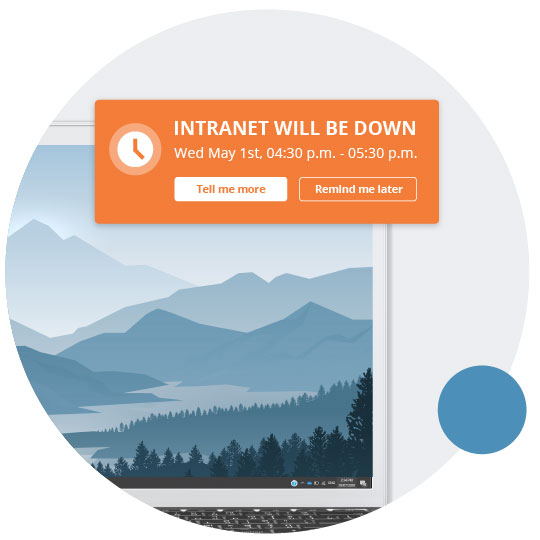
During unplanned outages, the IT helpdesk phone lines can go crazy. One way to deal with this is to put a message on an IVR to let users know the status of the problem. This option can be time- consuming and frustrating for both users and your IT team. Staff also see it as reactive at a time when they are looking for the IT team to take the lead.

Use Desktop Alerts or a Scrolling Ticker to notify staff about outages and to update them on progress as you fix those outages. These tools will continue to work when your email is down. And, since they are quick and easy to update regularly, as you work your way through the issue, they mean staff no longer need to ring your help desk repeatedly, to find out when you will fix the outage.

“The SnapComms internal communications software helps us ensure that time-critical messages get to users which they have to read. We are no longer reliant on Microsoft Exchange working.”
Milan Hira, IT Manager, AJ Park

Communication tools – Desktop Alert tool and Desktop News Feeds


Tip 6: Reduce the Volume of Internal Emails


internal-newsletters-for-effective-it-communication

User Generated Internal Newsletter Examples

Use alternative channels to e-mail wherever possible

SnapMag is an innovative magazine format which reduces the need for 'mass internal emails’. Any member of staff can click to submit an 'article' into predefined categories, using the same time and effort they would to write an email. The result: ‘a one-stop’, engaging e-magazine that replaces the stream of separate emails and uncoordinated messages from different departments.


SnapMag is more effective than an intranet notice board because:

  • non- technical administrators can act as editors to approve, decline, edit and re-order submitted articles;
  • you can customize the design and format of articles to produce an attractive, engaging magazine;
  • you can send the final magazine to the people you want to reach (and only those people);
  • you can view a report which shows who has read specific items in the magazine.


“SnapMag enables us to effortlessly keep in touch with sub-divisions within our company in a medium that doesn’t get ‘lost’ due to too many emails flooding our inboxes.”
Cosima Wagner, Marketing & Communications,Wipro Retail

Communication tools – SnapMag / Internal Newsletter tool


Tip 7: Expire Out-of-Date Messages


SnapMag helps you archive old information. Every time a staff member submits an article to SnapMag for publishing, they (or your magazine’s administrator) must assign it an expiry date. When this date arrives, SnapComm’s automatically deletes the articles and data published in the magazine from the user’s desktop, and archives them in a central place where staff can search for them if they wish. Emails don’t expire in this way; they pile up in inboxes until users delete them.


Tip 8: Make your Intranet More Useful by Promoting Content


Promote new intranet resources

Use pop-up Desktop Alerts, Scrolling News Feeds and Interactive Screensaver Messages to promote new resources and information available on your intranet. Add hyperlinks to make it easy for users to navigate to the new intranet content. SnapComms’ easy-to-use targeting feature lets you advise the staff who need to read that information (and those staff only).


Summarize intranet updates in a newsletter

SnapMag contains 'user-generated content'. Involving users makes the resulting newsletter more authentic and compelling than traditional electronic staff magazines. Staff can recommend intranet (and other) content they find helpful, using short updates followed by a hyperlink.

Thanks to the use of SnapComms tools, we have increased use of our intranet by more than 40% in the first year.”
Annabel Barbosa, Director, Communications, WINTEC

Resource –Tips increase intranet usage

Tip 9: Maximize the Value of RSS Feeds on your Intranet

RSS can be a fantastic way to let staff know about new developments or updates to the intranet. Unfortunately, if we rely on staff to opt in to specific feeds, we can be fairly certain many will not. This can make RSS an ineffective channel. SnapComms’ RSS Ticker tool lets you ‘push out’ specific RSS feeds to target users groups in an on-screen scrolling news ticker. This means staff do not need to opt in to important feeds.

Communication tools – Desktop RSS News Feeds and RSS Screensaver Messaging tool


Tip 10: Make your IT Training More Effective

IT-Internal-Quiz-Example

Desktop IT Survey

In 30 days people typically forget 80% of what they have learned on a training course unless it is reinforced in some way. SnapComms’ Desktop Quiz can target staff who have attended training or are using new systems. It pops up on users’ computers and can contain links to the intranet (or other resources) to let staff research questions before they answer them. Prompting staff who have not replied encourages as many as possible to take part.

“The SnapComms tools allow us to educate employees.”
Rella Stone, Senior Manager, Information Security, Cox Communications


Communication tools – Desktop Quiz and Survey tools


Tip 11: Encourage Staff to Use Self-Serve Online Helpdesks

internal-social-media-for-IT-helpdesk-communication

Online Helpdesk Example


The SnapComms Helpdesk tool lets staff experiencing IT problems to report an issue or ask a question using an online helpdesk. You can nominate moderators for each helpdesk who can receive desktop alerts when users post new questions. Moderators can answer questions directly or point the person to the intranet for an answer.

A helpdesk of this type means IT staff need to answer each question once only. After they have, the answer is readily available to others who report the same problem or ask the same question. To help staff find past questions and answers, each question is tagged and can be searched for. The result is an evolving body of IT knowledge.


Tip 12: Engage Staff in Technology Change

internal-survey-tool

IT Communication by Screensaver


Technology is changing fast and organizations introduce new systems regularly

To support this change, the IT team needs to communicate early and often. Identify who is accountable for doing this, gather feedback from users, explain the benefits of the new systems and how they work and encourage staff to use them effectively.


Low risk pilots and proofs of concept are effective ways to deploy and test new technologies. Communicating effectively before, during and after these projects and gathering users’ feedback regularly is critical to success.


Involve employees.

Where possible, involve staff and gather their views before you introduce new technology.


Build engagement with new technology

Use interactive screensaver messages to promote new technology visually. Use staff quizzes to engage staff and encourage them to use the new systems.


“The SnapComms' tools provide a range of ways to encourage and motivate staff to actively participate.”
Kelvin Tan, General Manager,Gosh Advertising

Communication tools – Screensaver Messaging tool, Desktop Survey and Quiz tools


Tip 13: Target Messages to the People Who Need Them

The SnapComms tools let you target messages to specific groups of users, based on your existing Active Directory settings and/or machine based targeting. You can also set up extra or new rules in the message manager to target users as needed.

If your Active Directory set-up isn’t quite as useful as it could be, use a Registration Desktop Alert to let users specify their settings and the messages they need. (This may also help you resolve existing AD issues.)

“Easy to use with great flexibility and no complicated network setups required.”
Yusuf Cajee, Marketing/Product Development, Freedom Healthcare

Communication tools – SnapComms Targeting Features using Active Directory Integration, Machine Based Targeting and/or Customized Targeting

Tip 14: Make Time for IT Communication

corporate-screensaver-example

IT Communication by Screensaver

IT resources are stretched and it’s going to get worse

The amount of data organizations generate is expected to continue to grow dramatically. However, the resources IT teams have available are unlikely to keep pace. One way to reduce this pressure on your IT team is to improve communication between your team and the people they support. For example, asking users what they need from IT will help the IT team understand where to focus efforts. Similarly, by improving communication with your users you can encourage them to meet some of their own IT needs.


Delegating activities IT traditionally performs

Delegating activities can be a good way to manage with limited resources. The SnapComms messaging tools let you do this. For example, your IT team can delegate administration rights that let non-IT users:
  • update screensavers across your organization; and
  • set up and manage secure internal social media channels.

Communication tools – Screensaver Messaging tool, Plug-and-play Internal Social Media

Related Resources